
I like Quad9’s public DNS 9.9.9.9 for all the safety and privacy features it provides.
I’d also like my browsing to be private on Brave Browser when moving between networks that I don’t control.
This can be implemented at both my own private network level through my UniFi Dream Machine Pro and also at my device level with Brave Browser.
https://quad9.net/service/service-addresses-and-features
Enabled DoH (DNS-over-HTTPS) in Brave Browser
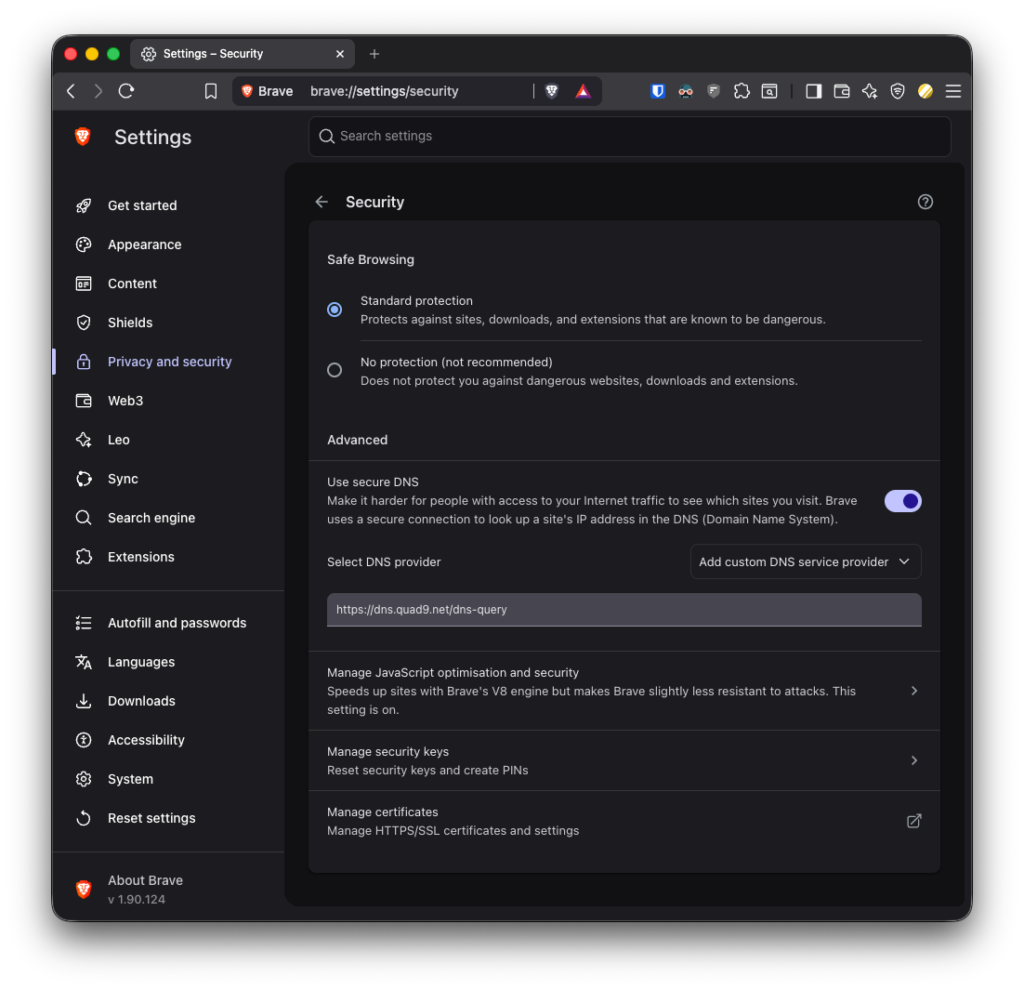
⌘ + ,then navigate to “Privacy and security > Security”- or
brave://settings/security
- or
- Enable the “Advanced > Use secure DNS” toggle.
- “Select DNS provider > Add custom DNS service provider”
- Paste in
https://dns.quad9.net/dns-query - Test here: https://on.quad9.net/
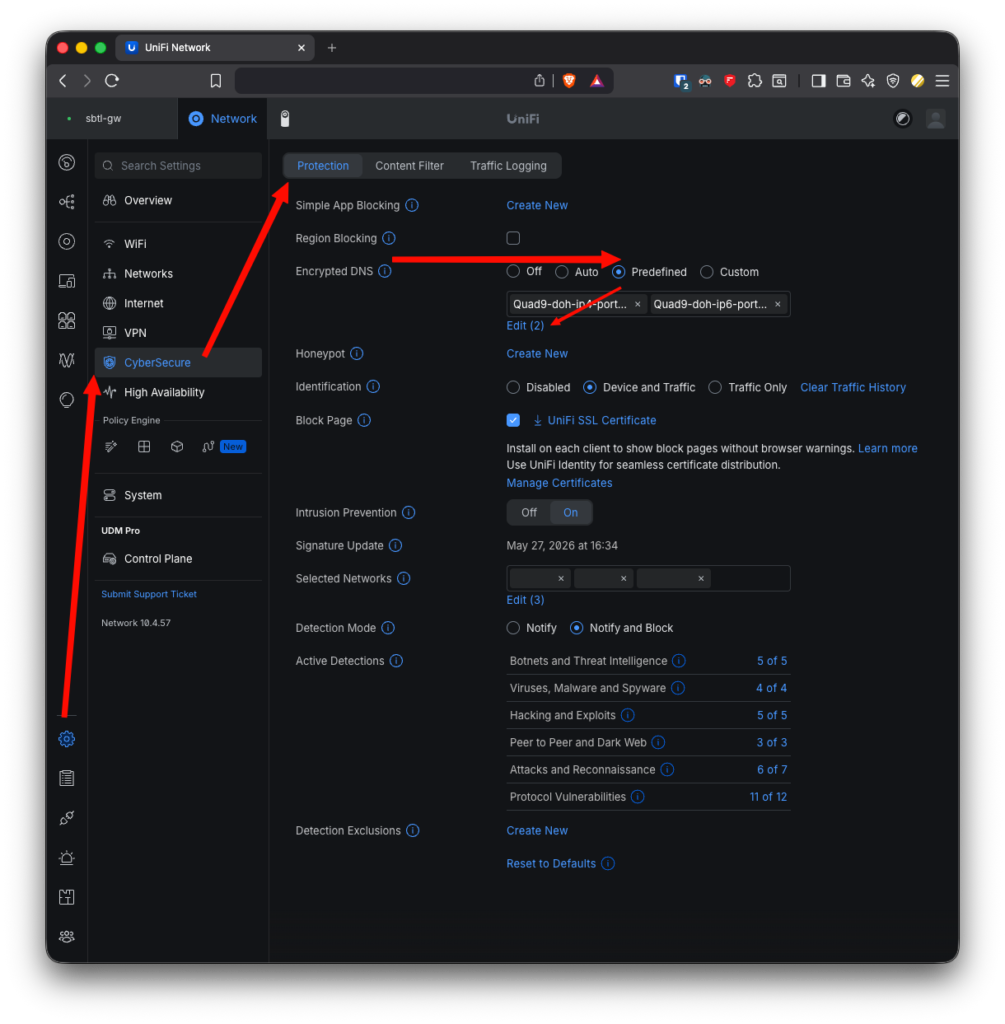
Enabled DoH in UniFi Network
- Open UniFi Network (in this example version 10.4)
- Go to Settings cog (towards the bottom of the left nav)
- CyberSecure
- Protection
- Change “Encrypted DNS” to “Predefined”
- Delete “CloudFlare” and “Google”
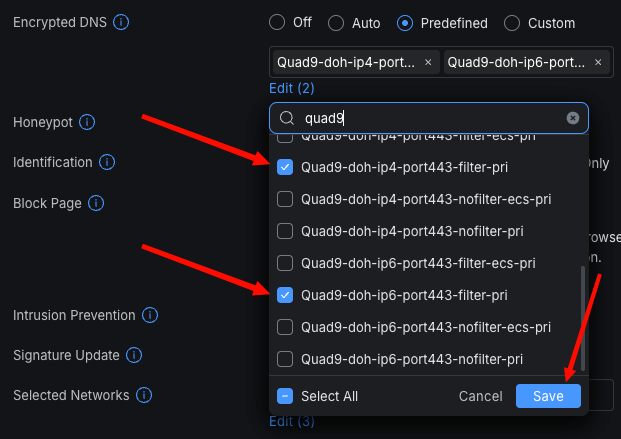
- Use the “Select” link
- Type “quad9” into the filter field labelled “Search”
- Scroll all the way to the bottom
- Check these entires:
Quad9-doh-ip4-port443-filter-priQuad9-doh-ip6-port443-filter-pri- Only required if you run a dual stack IPv4 and IPv6 setup, like I do with Starlink.
- Save
- Apply Changes
Leave a Reply
You must be logged in to post a comment.